How to Tap Out The Tempo Using the Metronome
How to Tap the Tempo on a Laptop, iPad or Tablet
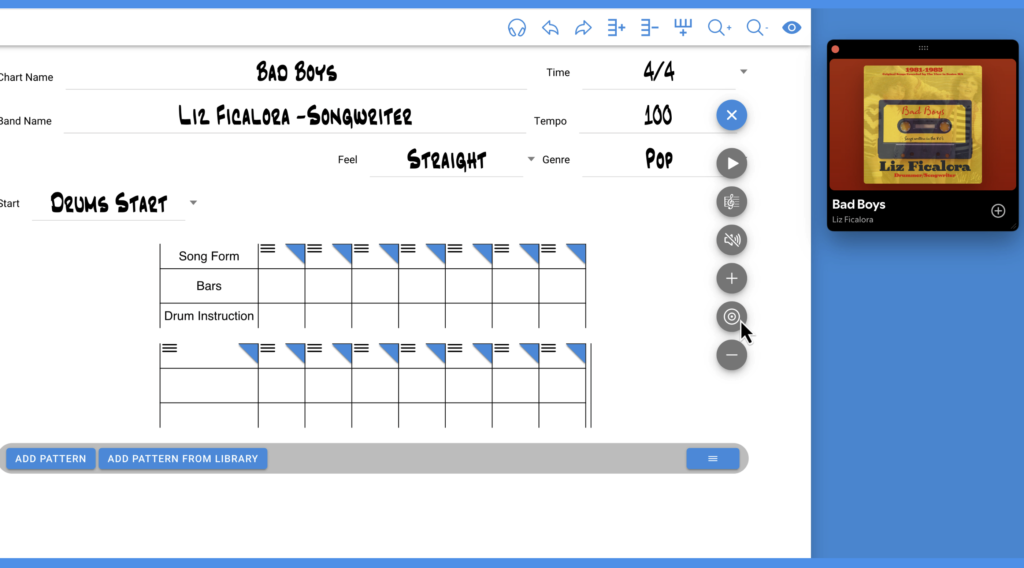
In your new chart, select the metronome icon to open the control dropdown menu.

The play button starts and stops the metronome click and the blinking light in the header of your chart. You can also click on the chart header to start and stop the metronome.
The icon with the circles is the tap button. When building a chart on your computer you can use your mouse to tap the tempo or use the space bar on your keyboard .
I found the mouse to be very accurate.
On an iPad or tablet, you can tap out the tempo with your finger using the tap icon. You can also tap the chart header to turn the metronome on and off.
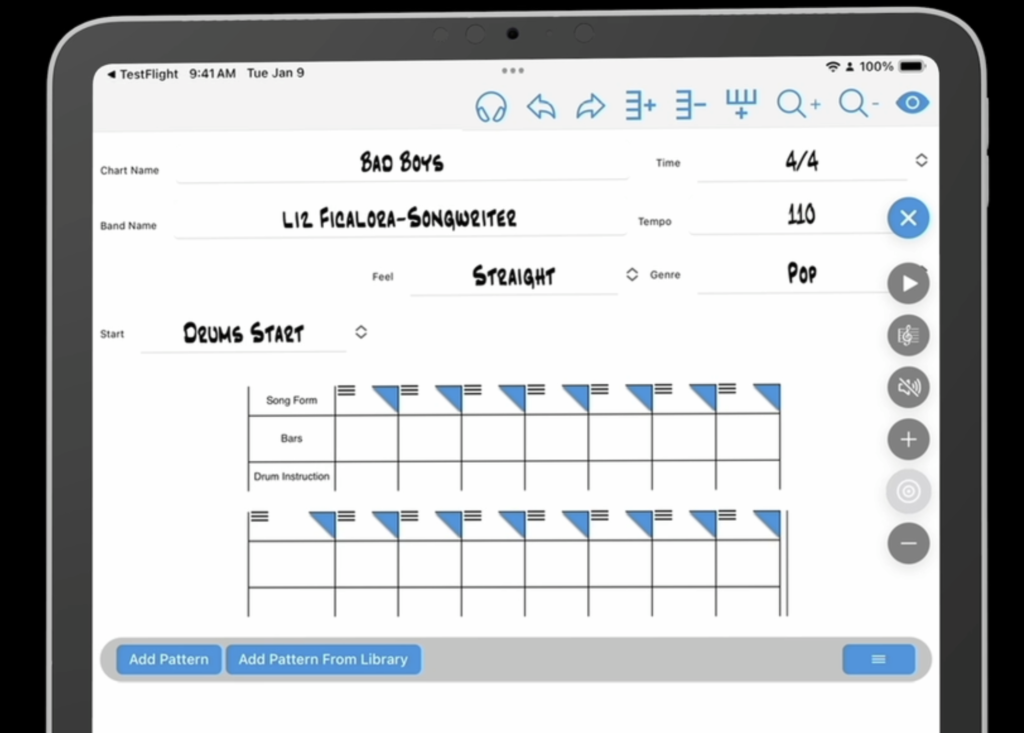
To determine the tempo of your song,
Start your song player and start taping out the tempo.
Once you get as close as you can, select the play icon to start the metronome in tempo with the song to see if it matches.
Select the + key to increase the tempo or the – key to decrease the tempo.
Working with both keys and the play key until the metronome click sync’s with your song.
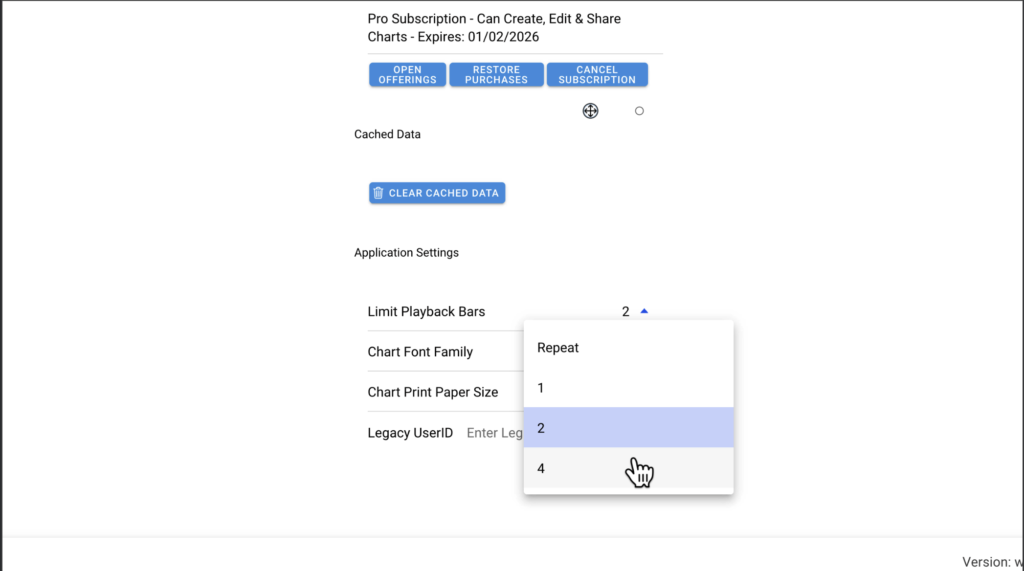
Limit Playback Bars on the Account Page
On the accounts page of the app, you can control
how many bars that you want the metronome to start and stop.
Under Application Settings you will see Limit Playback Bars.
Here you can choose Repeat to have the metronome click continuously
Or choose 1, 2 or 4 to have the metronome click for one bar, two bars or 4 bars only than stop.